


Nomad Sculpt
3.6719.00 Reviews
App Specs
- Version
- 2.8
- Updated On
- License
- Free
- Downloads
- 1,000,000+
- Developer
- Hexanomad
- Categories
- Art & Design
- Platform
- Android, iOS
Screenshots
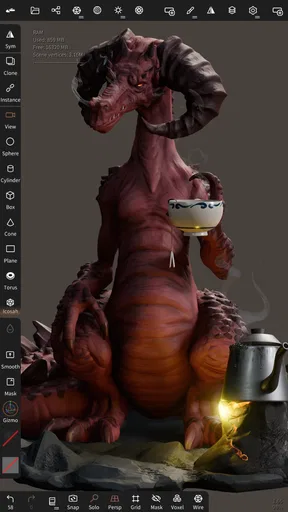
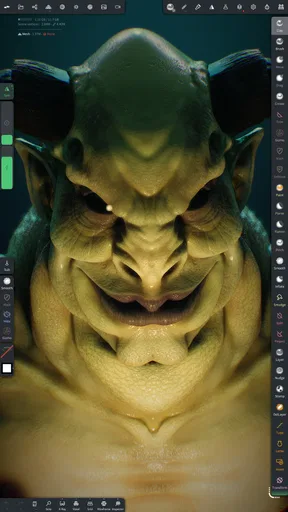
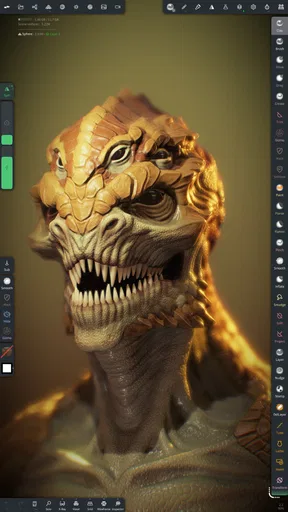
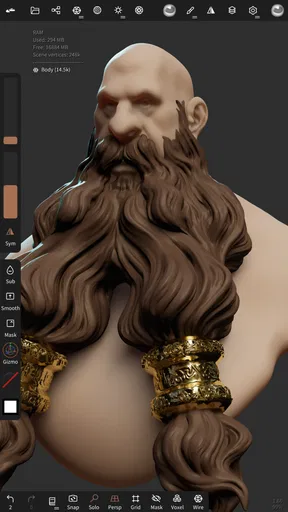
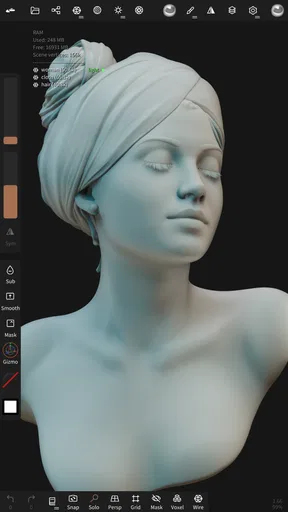
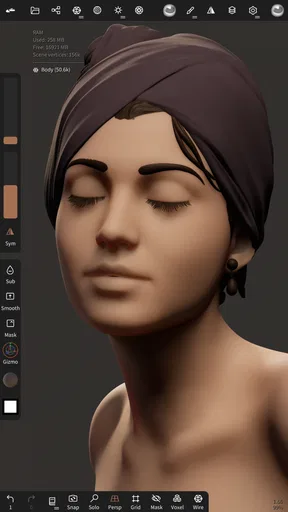
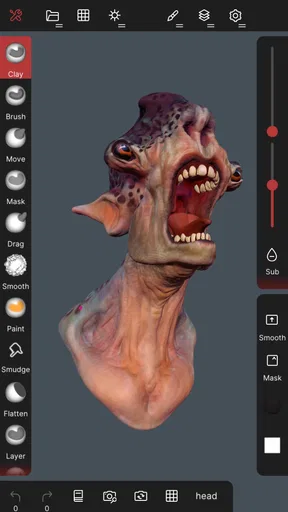
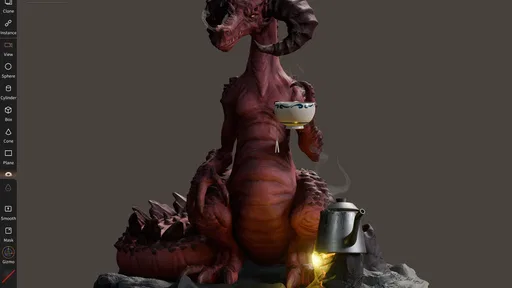
 Analysis by AppCompare
I judge a sculpting app by what happens after the first few minutes of novelty: can I shape an idea without wrestling with the interface, and can I get enough control to refine it later? That is where Nomad Sculpt makes its case. It is a mobile 3D art app from Hexanomad, aimed at people who want to form and paint objects on a phone or tablet rather than reserve every modeling session for a desktop. I find that convenience genuinely useful, though it does not make a small touchscreen a substitute for every part of a desktop workflow.
What free access does—and does not—tell you
The app is free to download, and its in-app purchase is listed at $19.99 per item. That makes it reasonable to try the basic experience before deciding whether a paid option suits your needs. I would not treat “free” as a promise that every tool or use case costs nothing: check the purchase details shown on your device before committing, especially if you are installing it for a younger artist.
Nomad Sculpt is rated for Everyone, and its current version is 2.8. The app has a 3.5 average from around 8,300 ratings, alongside roughly 680 written reviews, and has been installed over a million times. Those figures suggest a widely tried tool with mixed reactions, not a guarantee that it will fit every device or working style. It first appeared on August 3, 2020, and requires Android 8.0 or later on Android.
Where the value shows up in practice
For me, the main value is being able to move from a rough thought to a tangible 3D form without setting up a full desktop session. A quick character head, a chunky prop, or a stylized creature can begin as a simple shape and take form through repeated sculpting passes. That makes the app especially appealing for visual brainstorming: the goal can be to test silhouette and expression, not to finish a production-ready asset in one sitting.
The combination of sculpting, painting, and presentation also makes it useful for personal art studies. I can explore how a material or lighting choice changes the mood of a form, then decide whether the idea deserves more work elsewhere. If you are learning, that short feedback loop is valuable: you can make a mark, rotate the object, and immediately see how the shape reads from another angle. The strongest reason to try it is not that it replaces a workstation, but that it lowers the friction between having an idea and seeing it in 3D.
How it feels as a mobile sculpting workspace
First things first, downloading and setting up Nomad Sculpt was a breeze. It's available on both Android and iOS, so I grabbed it from the app store and jumped right in. The app's interface is sleek and intuitive, perfect for both beginners and seasoned sculptors alike. I was pleasantly surprised to find that the learning curve wasn't steep at all, thanks to its user-friendly design.
Once you're in, Nomad offers a simple yet powerful set of tools. You can start with a basic sphere or cube and gradually mold it into whatever your imagination conjures. The app provides a variety of brushes, each customizable, allowing you to add texture or fine details with ease.
Worth Reading Before You Choose

EA SPORTS FC Mobile 26 Is a Bigger Football Game, but It Takes Time

Flipboard Shows What News Apps Must Do Beyond the Feed

Switching to Android Auto Means Rethinking Your Driving Routine

Google Calendar Makes a Crowded Week Easier to Manage

Ludo King Makes the Most of the Minutes Between Plans

Baby Panda World Brings Quick Play to Modern Phones, but Its Game Library Feels Busy
The Tools and Features
Nomad Sculpt comes packed with features that make the sculpting process both fun and rewarding. Here are some of the highlights:
- Dynamic Topology: This feature automatically adds detail to areas where you work, so you can focus on sculpting without worrying about the underlying mesh.
- Brush Library: With a plethora of brushes to choose from, you can create anything from rough stone textures to smooth skin surfaces. Plus, each brush is highly customizable.
- PBR Rendering: The app's physically-based rendering engine lets you see your models as they would appear in real life, complete with realistic lighting and shadows.
- Multiresolution Sculpting: You can switch between different levels of detail, which is super handy for refining those minute details.
- Layer System: Much like in photo editing software, layers allow you to make non-destructive edits, which is fantastic for experimenting without ruining your work.
Practical habits that make sculpting easier
One useful way to approach a new model is to keep the first pass deliberately broad. I would establish the overall outline and proportions before adding texture or tiny marks; details can make a weak silhouette look busy without fixing its shape. Rotating the object frequently helps catch lopsided forms that seem fine from a single view. This is a simple habit, but on a touch device it matters because the screen can encourage close-up work before the larger structure is settled.
Dynamic topology and multiresolution work solve different problems, so I would choose between them with the next edit in mind. Automatic detail can be convenient when I am freely pushing into a local area, while switching levels is useful when I want to move between broad shaping and finer refinement. Neither choice removes the need to keep an eye on complexity: adding detail everywhere can make a model harder to handle and less pleasant to edit. I get better results by concentrating fine work where it supports the form.
The layer system is also worth treating as a way to test decisions, not merely as a safety net. I would separate an exploratory surface pass from the underlying shape when possible, so I can reconsider the texture without rebuilding the model. That is particularly handy for comparing a smooth, toy-like finish with a rougher one. It encourages experimentation, although layers do not replace saving a project carefully or planning a model for a specific downstream task.
Performance and Usability
Performance-wise, I was impressed. Even on my smartphone, the app ran smoothly, handling complex models with ease. Of course, the experience might vary depending on your device, but on my mid-range phone, I faced no issues at all. The touch controls are responsive, making it feel almost like you're manipulating clay with your fingers.
One thing I really appreciated was the ability to export models in various formats. Whether you're planning to 3D print or import into other software, Nomad's got you covered. It supports all the major file types, ensuring compatibility with most workflows.
Screen size, controls, and finishing a project
Touch input is a natural fit for broad strokes and quick rotations, but it can be less comfortable when precision matters. On a phone, my fingers cover part of the model, and small interface targets can make a careful operation feel fiddly. A larger tablet gives the sculpt more breathing room; a compatible stylus can also make deliberate drawing and painting easier, though the app’s appeal is not dependent on owning one. If you already know you prefer a keyboard-heavy, shortcut-driven workflow, desktop software may still feel faster.
Before moving a model into another tool or toward printing, I would treat export as a handoff that deserves a check rather than a magic final step. Inspect the shape from several angles, make sure the level of detail suits the intended use, and confirm the format and settings in the export flow for the destination you have in mind. A sculpt that looks convincing on screen is not automatically ready for every production pipeline. This is where the app works best as one part of a process, not as a promise that every technical finishing task disappears.
For a realistic everyday session, imagine having a short break and wanting to test a mascot idea for a personal project. I could block out a head from a basic form, adjust the proportions, and try a few surface treatments before the break ends. Later, I could return to the same concept for focused refinement or export it for further work. That stop-and-start rhythm is a real advantage of mobile sculpting: it makes small creative sessions worthwhile, even when there is no time to sit at a desk.
How it compares with other ways to make 3D art
Compared with a conventional desktop modeling package, Nomad Sculpt puts direct sculpting on a touchscreen first. That can feel more immediate for organic forms—creatures, faces, props with rounded surfaces—than building everything through menus and precise mouse operations. Desktop tools are usually the better fit when a project depends on extensive keyboard shortcuts, intricate scene management, or a larger production pipeline. I would choose based on the work, not assume one approach is universally superior.
It also occupies a different lane from a basic drawing or painting app. A 2D sketch is quicker for trying composition and color, but it cannot give the same sense of volume that comes from turning a sculpt in space. Conversely, if the goal is clean mechanical parts with exact dimensions, a dedicated CAD tool is more appropriate than an artistic sculpting workflow. Nomad is most persuasive when the subject benefits from expressive shaping and visual iteration rather than strict engineering precision.
Performance and Usability
Performance-wise, I was impressed. Even on my smartphone, the app ran smoothly, handling complex models with ease. Of course, the experience might vary depending on your device, but on my mid-range phone, I faced no issues at all. The touch controls are responsive, making it feel almost like you're manipulating clay with your fingers.
One thing I really appreciated was the ability to export models in various formats. Whether you're planning to 3D print or import into other software, Nomad's got you covered. It supports all the major file types, ensuring compatibility with most workflows.
Who is likely to get the most from it
I would recommend trying it if you are a beginner curious about 3D form, an illustrator who wants to explore sculptural references, or an experienced artist who values being able to rough out ideas away from a computer. It can also suit someone who enjoys making digital objects as a hobby and does not need every project to become a polished commercial asset. The touch-first approach is part of the point: it invites you to shape and inspect an object directly.
I would skip it, or at least avoid making it my only tool, if I needed exact manufacturing dimensions, a highly structured studio pipeline, or dependable comfort for long precision sessions on a small phone. It is also not the right purchase simply because a 3D app is free to install; the listed in-app purchase means I would check what is included before relying on a paid capability. For an occasional experiment, the free entry makes trying it easy. For sustained work, judge the value by whether the controls, export workflow, and device performance suit the projects you actually make.
Why You Should Try Nomad Sculpt
Now, if you're wondering why you should give Nomad Sculpt a try, here's the scoop: it’s an incredibly powerful tool that fits into your mobile device. Whether you’re sketching ideas on the go or working on a detailed project, this app is versatile enough to handle it all. The developers are also quite active, regularly updating the app with new features and improvements, which is always a good sign.
Plus, it's just plain fun. There's something incredibly satisfying about shaping and crafting something from scratch, and Nomad Sculpt captures that feeling beautifully. It’s perfect for those moments when you’re stuck in a creative rut and need a fresh canvas to play around with.
Choosing it for the right reason
The app’s appeal is strongest when I want a hands-on way to explore form, not when I expect it to solve every challenge associated with 3D production. Before investing time in a large project, I would make a small test model and take it through the whole loop: shape it, add a modest amount of detail, try a finish, then see how the export fits the next step. That reveals more than a long feature list because it shows whether the real interaction suits your hands and your device.
Another sensible test is to work on the same idea from two starting points: a quick rough sculpt and a carefully planned model. If the rough version helps you discover the right proportions, the app is doing something valuable even if you later rebuild or refine the asset elsewhere. If your task instead depends on exact dimensions from the outset, starting in a precision-focused application will likely save frustration. The practical distinction is between exploring what a shape should feel like and specifying exactly how it must be manufactured.
Final Thoughts
In conclusion, Nomad Sculpt is a fantastic app for both aspiring and professional digital sculptors. Its intuitive interface, robust feature set, and excellent performance make it a standout choice for anyone interested in 3D art. Whether you're on a long commute or lounging at home, you can dive into your creative projects anytime, anywhere. So if you haven't already, give it a whirl and let your creativity run wild!
My recommendation is a measured yes: try it if mobile sculpting fits the way you like to think and work, and use a small project to decide whether the controls and output meet your needs. Its free download lowers the barrier to that test, while the in-app purchase makes it worth checking the exact purchase screen before spending. I would not buy it on the assumption that a phone can replace a specialist desktop setup, but as a portable space for shaping ideas, it offers a clear reason to keep it close.
Pros
- Intuitive interface for beginners.
- Wide range of sculpting tools.
- Supports multiple file formats.
- Responsive and fluid performance.
- Regular updates with new features.
Cons
- Limited export options in free version.
- Steeper learning curve for advanced features.
- Occasional crashes on older devices.
- In-app purchases can add up.
- No built-in tutorials for guidance.
FAQs for Nomad Sculpt
What platforms is Nomad Sculpt available on?
Nomad Sculpt is available on both Android and iOS devices. It’s optimized to run smoothly on a variety of tablets and smartphones, providing a seamless experience regardless of your device. Make sure your device meets the minimum system requirements for the best performance.
Is Nomad Sculpt beginner-friendly?
Yes, Nomad Sculpt is designed to be user-friendly for both beginners and experienced artists. It features an intuitive interface and a wide array of tools that are easy to learn, making it accessible for those new to digital sculpting while still offering advanced features for professionals.
What features does Nomad Sculpt offer?
Nomad Sculpt offers a wide range of features, including dynamic topology, voxel remeshing, and a variety of brushes for detailed sculpting. It also includes PBR rendering for realistic textures, multi-resolution sculpting, and an easy-to-use layer system for better workflow management.
Does Nomad Sculpt support file export and import?
Yes, Nomad Sculpt supports multiple file formats for both import and export, including OBJ, STL, and GLTF. This allows for easy integration with other 3D software, enabling artists to continue their work across different platforms and tools with minimal hassle.
Is there a cost associated with Nomad Sculpt?
Nomad Sculpt is a paid app, but it offers excellent value with its extensive range of features and capabilities. There might be a one-time purchase fee, but there are no recurring subscription costs, making it a cost-effective choice for digital sculpting enthusiasts.


